
Clone store data
Transfer your Shopify store data to another store for staging, migration, expansion, or development.
Recover lets you clone data from one Shopify store to another — including products, collections, themes, metafields, and more. The source store's backup is used as the basis for the transfer, so both stores need Recover installed with a completed backup.
When to use cloning
- Staging or development — clone production data to a test store to safely try theme changes, app integrations, or bulk edits.
- Regional expansion — duplicate your catalog and content to a store targeting a different market or currency.
- New brand setup — use an existing store as a template for a new brand.
Supported data types
| Data type | Supported |
|---|---|
| Products | ✓ |
| Custom collections | ✓ |
| Smart collections | ✓ |
| Pages | ✓ |
| Blogs and blog posts | ✓ |
| Files | ✓ |
| Themes | ✓ |
| Customers | ✓ |
| Metafield definitions | ✓ |
| Metafields | ✓ |
| Metaobject definitions | ✓ |
| Metaobjects | ✓ |
| Translations | ✓ |
Orders, store settings, third-party app data, and menus are not transferred.
Clone your store
Prerequisites
- Recover installed on both stores
- A Pro plan or higher on the source store (the destination can be on any plan)
- A completed initial backup on both stores
The steps below use "MyShopUS" as the source and "MyShopEU" as the destination. Replace these with your actual store names.
On the source store
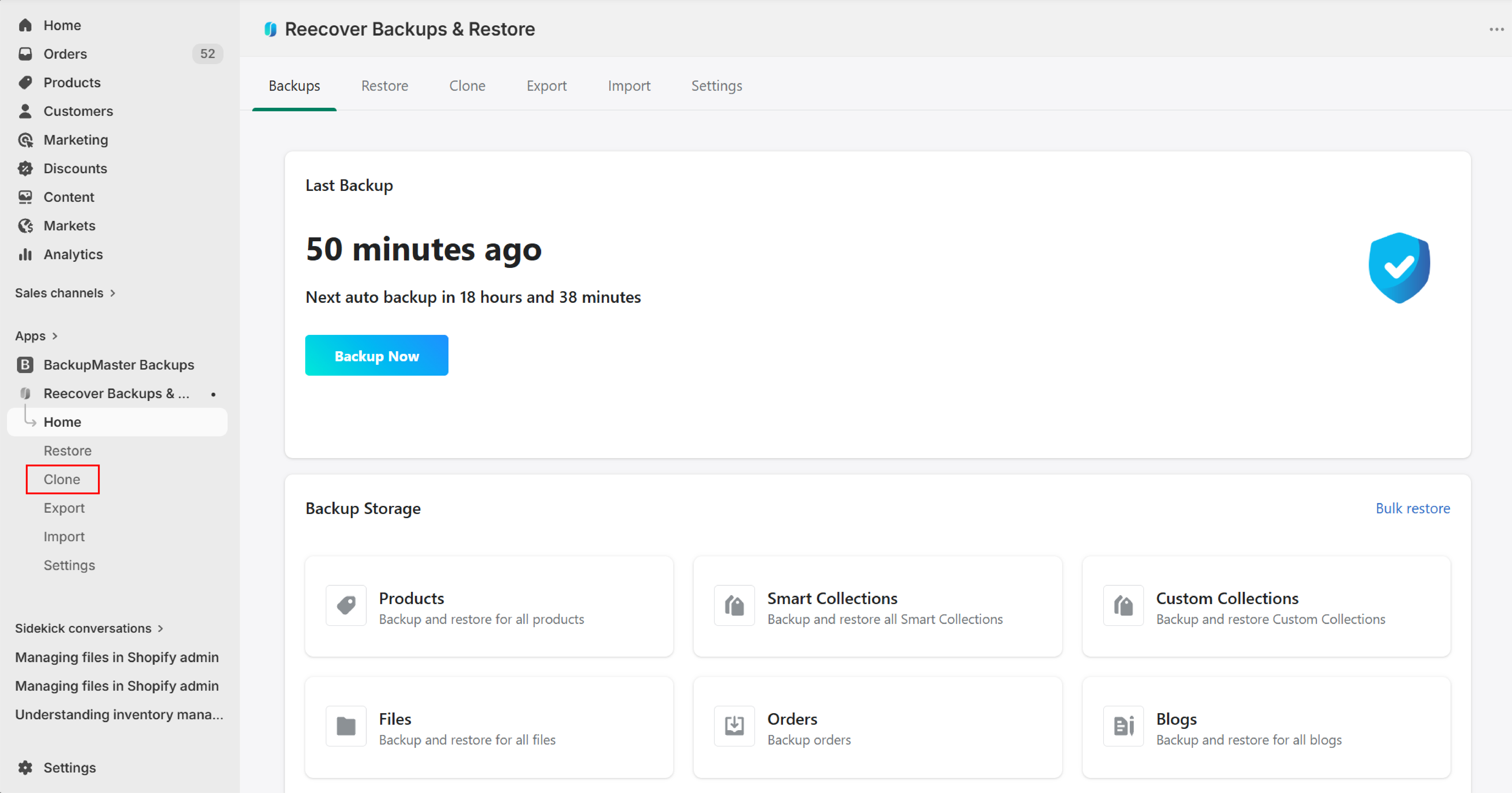
1. Open Clone store
In the source store's Shopify admin, go to Apps > Recover and click Clone store.
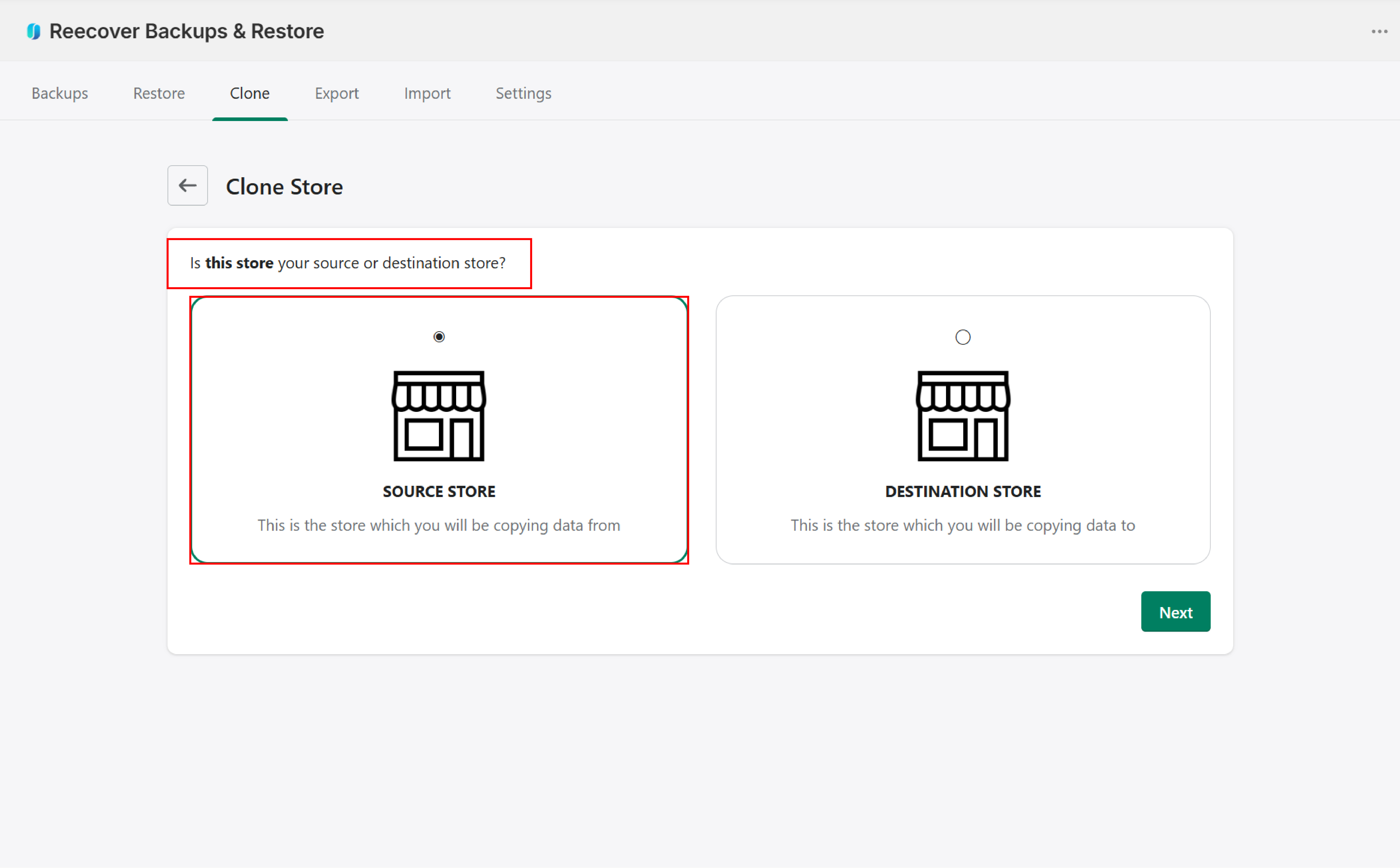
2. Confirm the source store
Confirm that you're in the source store (MyShopUS).
3. Enter the destination store name
Enter the destination store name (MyShopEU).
Warning: Enter only the store name, not the full URL. For example, enter myshopeu — not myshopeu.myshopify.com.
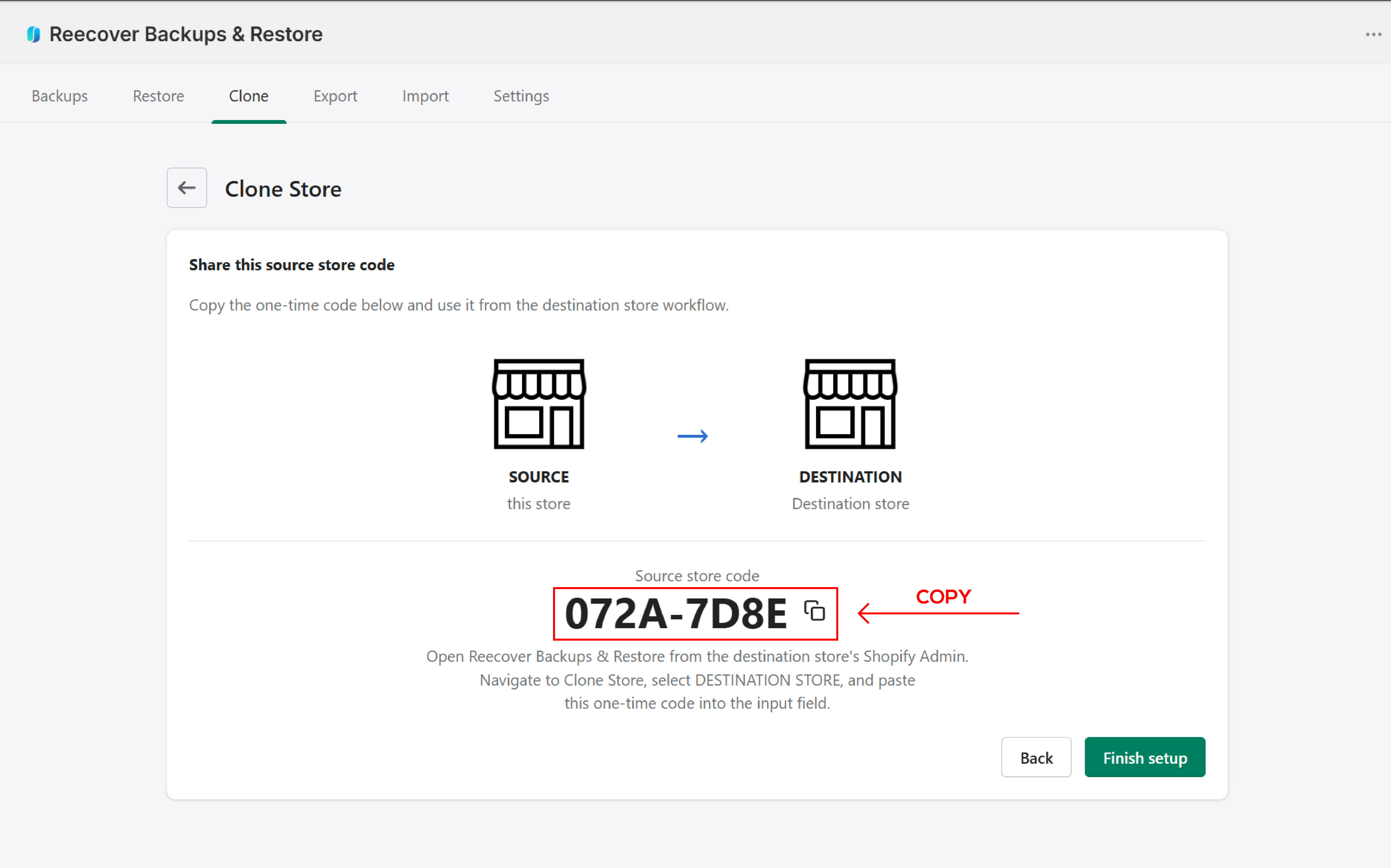
4. Copy the clone code
Copy the unique code that Recover generates. You'll enter this on the destination store.
On the destination store
1. Open Clone store
In the destination store's Shopify admin, go to Apps > Recover and click Clone store.
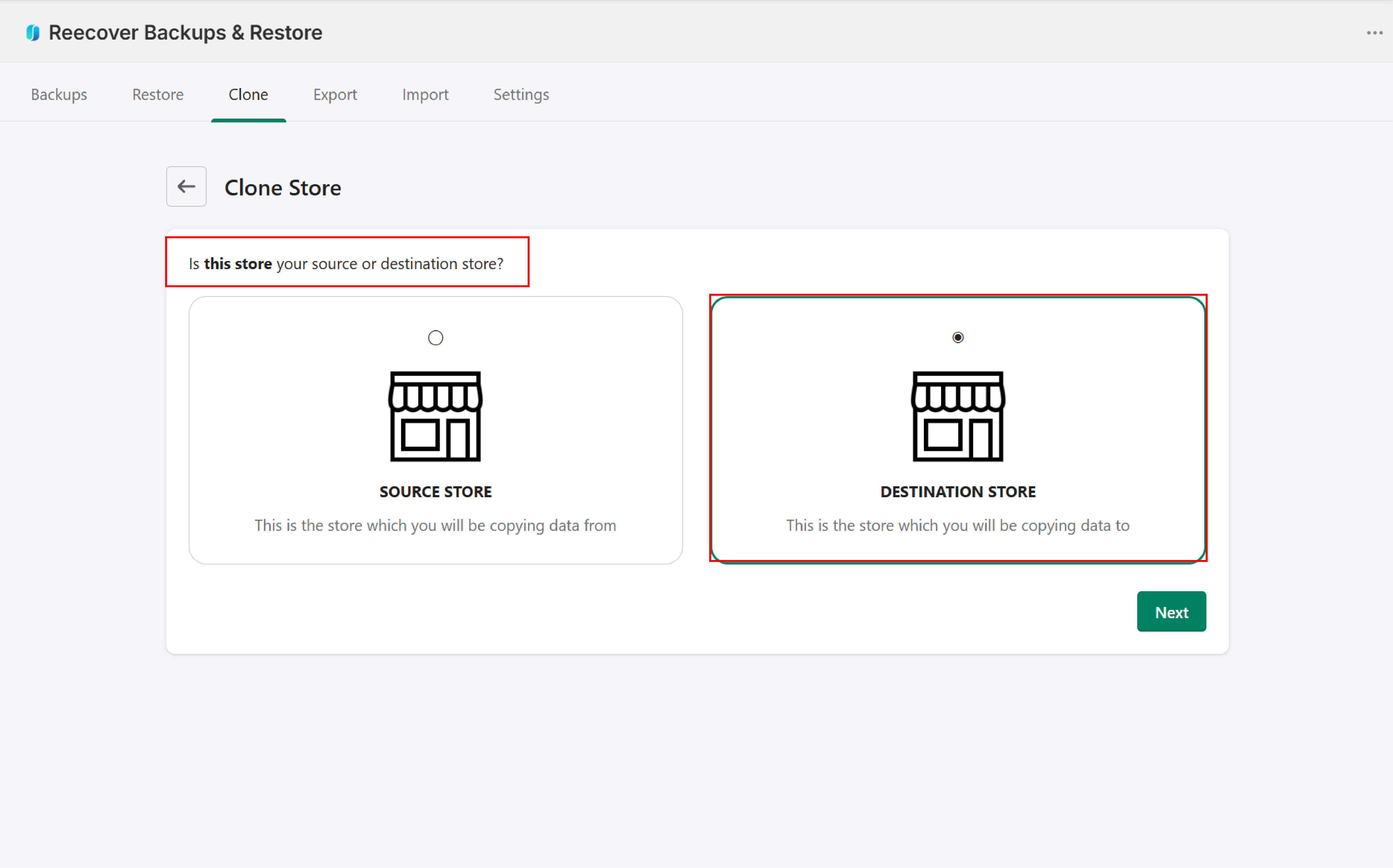
2. Confirm the destination store
Confirm that you're in the destination store (MyShopEU).
3. Paste the clone code
Paste the code from the source store and click Activate.

How items are matched
Recover matches each item by handle in the destination store. If a match exists, the destination item is updated with the source version. If no match is found, a new item is created. Cloning the same data twice won't create duplicates. Items that exist only on the destination are left untouched.
Newly created items always receive new Shopify IDs on the destination store, because Shopify generates IDs per store — they are not portable across stores. Handles, content fields, metafields, and all other backed-up data are preserved.
How dependencies are resolved
Recover resolves dependencies between objects automatically. Before the transfer begins, it creates matching metafield and metaobject definitions and any missing languages in the destination store. When an item transfers, its metafields, metaobjects, and translations transfer with it — for example, a product is cloned together with all of its metafields and translations.
References between objects — products in collections, metafields that reference products, files, collections, or blog posts — are resolved by matching handles in the destination store.
Warning: If a metafield or metaobject definition already exists on the destination store with a different type than the source (for example, single_line_text vs. multi_line_text), the transfer for that definition will fail. Make sure definition types match between stores, or remove the conflicting definition from the destination before cloning.
Frequently asked questions
Will cloning delete existing data on the destination store?
No. Items that exist only on the destination are left untouched. Cloning only updates items that match by handle and creates new items for anything that doesn't exist yet.
Can I clone the same data twice?
Yes. Recover matches items by handle, so cloning the same data again updates existing items instead of creating duplicates.
Does cloning transfer orders?
No. Orders, store settings, third-party app data, and menus are not transferred.
Can I clone to multiple destination stores?
Yes. Repeat the process for each destination store using a new clone code.
Do I need to keep the browser open during the transfer?
No. You can close the browser after starting the import. Recover sends an email when the process finishes.
Need help?
If you have questions or need assistance, the support team is here to help. Reach out at support@massyve.tech or visit Contact support.