
Set up scheduled exports
Automate regular exports of your backed-up Shopify data to email or Google Drive on a weekly or monthly basis.
Recover stores your data in secure backup storage — that's your primary backup. Scheduled exports create regular additional copies on your local drive or Google Drive, giving you an extra layer of protection following the 3-2-1 backup rule (three copies of your data, on two different storage types, with one stored offsite).
Configure a scheduled export
Prerequisites
- A Pro plan or higher
- At least one completed backup
- A Google account with available Drive storage (for Google Drive delivery)
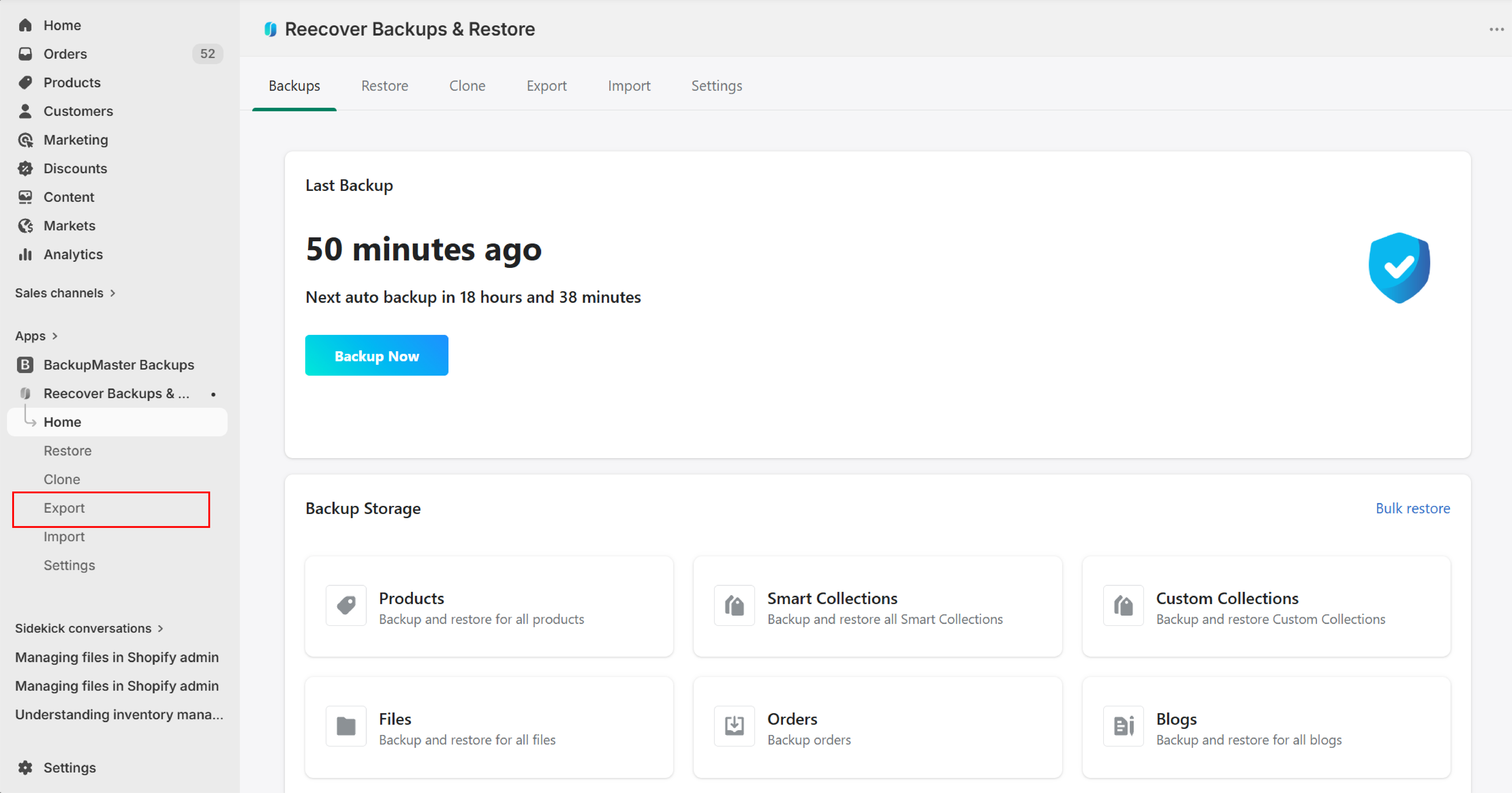
1. Open Recover and click Export
Open your Shopify admin, launch the Recover app, and click Export on the dashboard.
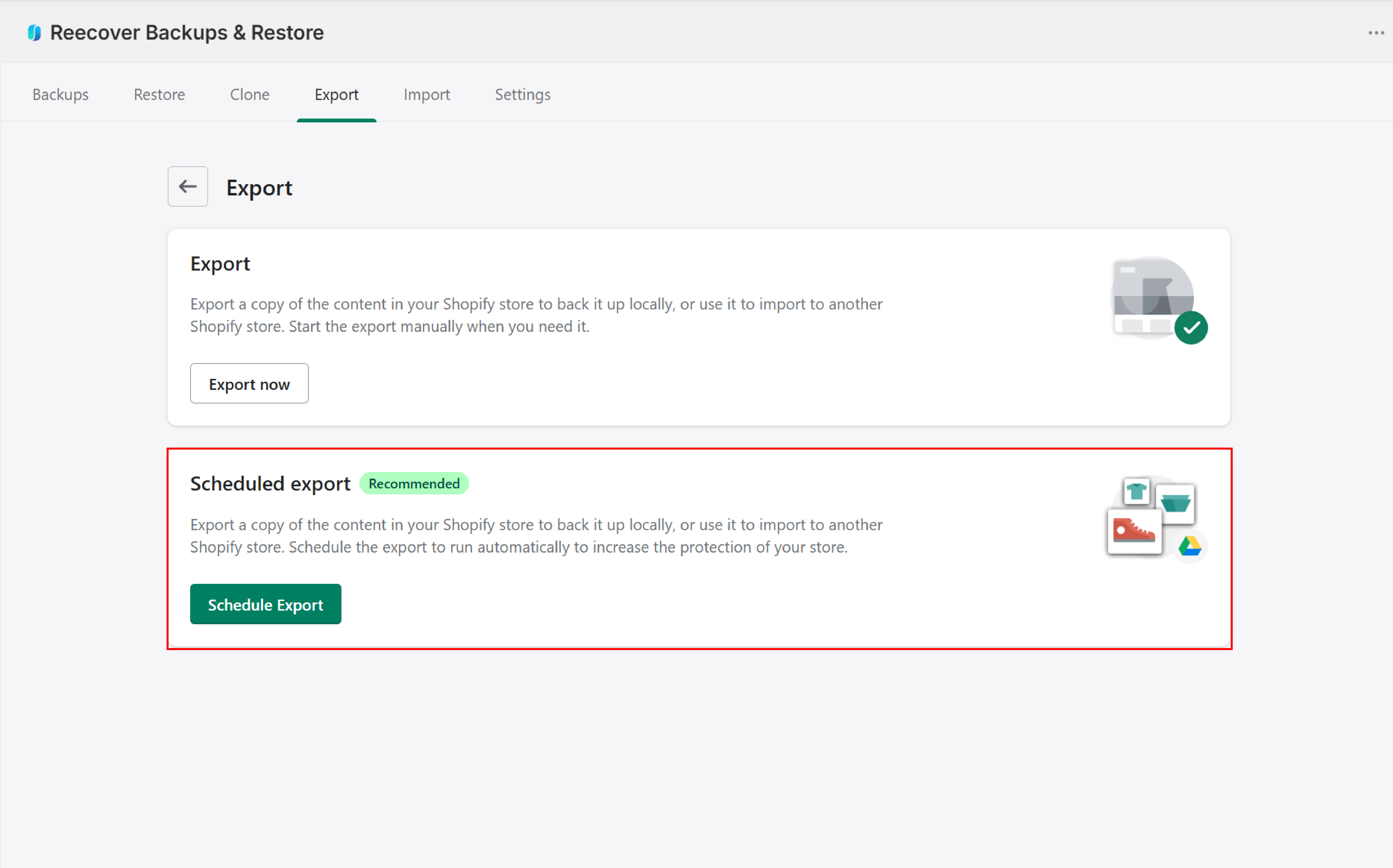
2. Select Scheduled Export
Select Scheduled Export.
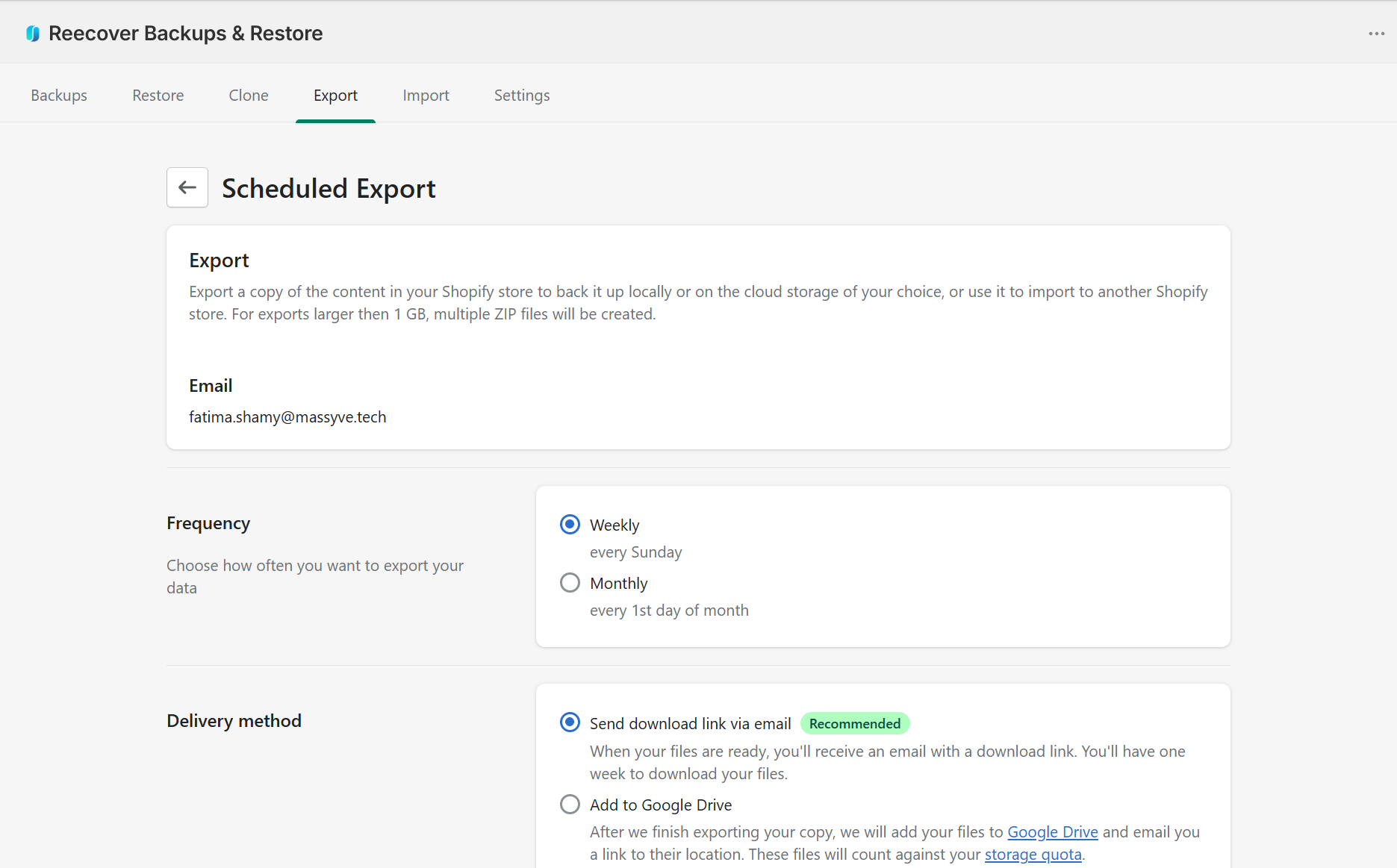
3. Configure frequency and delivery method
Choose your export frequency (weekly or monthly) and delivery method (email or Google Drive). If you choose Google Drive, authenticate your account when prompted.
4. Save and activate
Click Scheduled Export to save and activate.
Scheduled exports run on Sundays after the automatic backup completes.
Troubleshooting
Scheduled exports not running
Check that your plan is active and the schedule is turned on in the export settings.
Google Drive authentication fails for scheduled exports
Verify that you granted Recover the required permission during the authentication flow. Try again in a different browser if needed.
Need help?
If you have questions or need assistance, the support team is here to help. Reach out at support@massyve.tech or visit Contact support.