
Export and download a backup
Export your backed-up Shopify data and download it as a ZIP archive to your computer or external storage.
Recover stores your data in secure backup storage — that's your primary backup. Exporting creates an additional copy on your local drive, giving you an extra layer of protection following the 3-2-1 backup rule (three copies of your data, on two different storage types, with one stored offsite). This is also useful if you plan to pause or close your store temporarily.
To transfer data between stores, use the clone feature instead — no need to download and re-import files.
Export and download your backup
Prerequisites
- A Pro plan or higher
- At least one completed backup
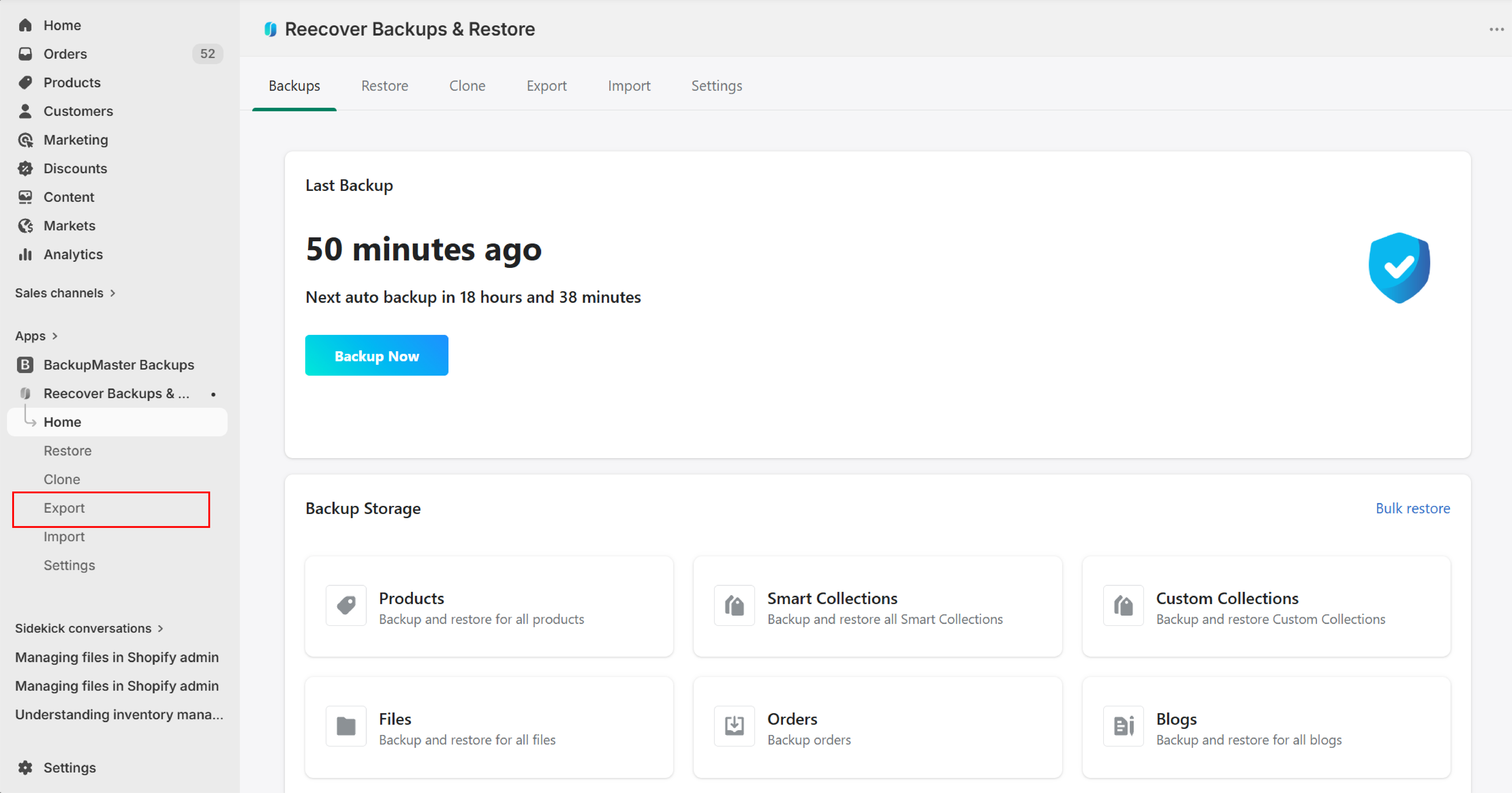
1. Open Recover and click Export
Open your Shopify admin, launch the Recover app, and click Export on the dashboard.
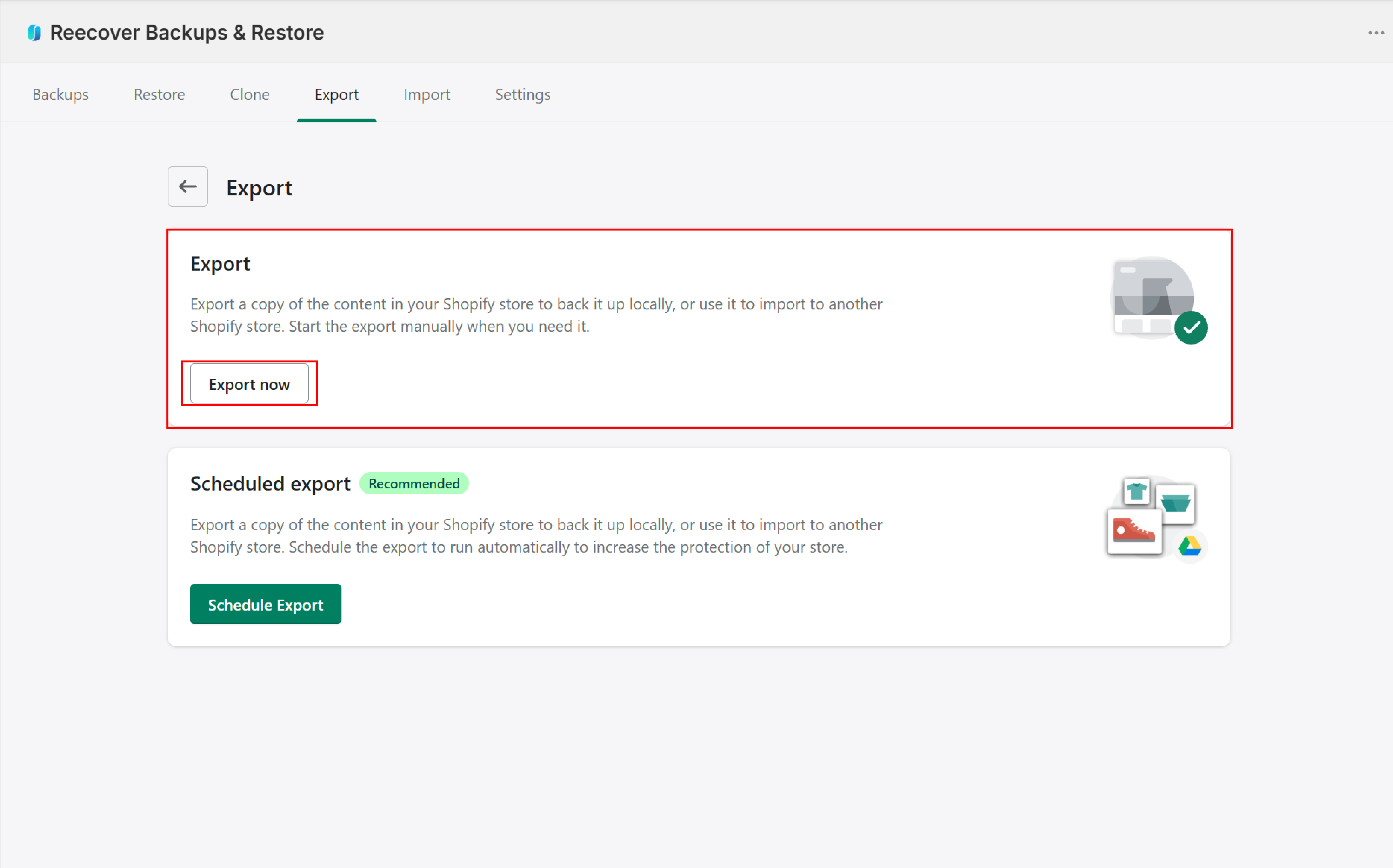
2. Select Export Now
Select Export Now.
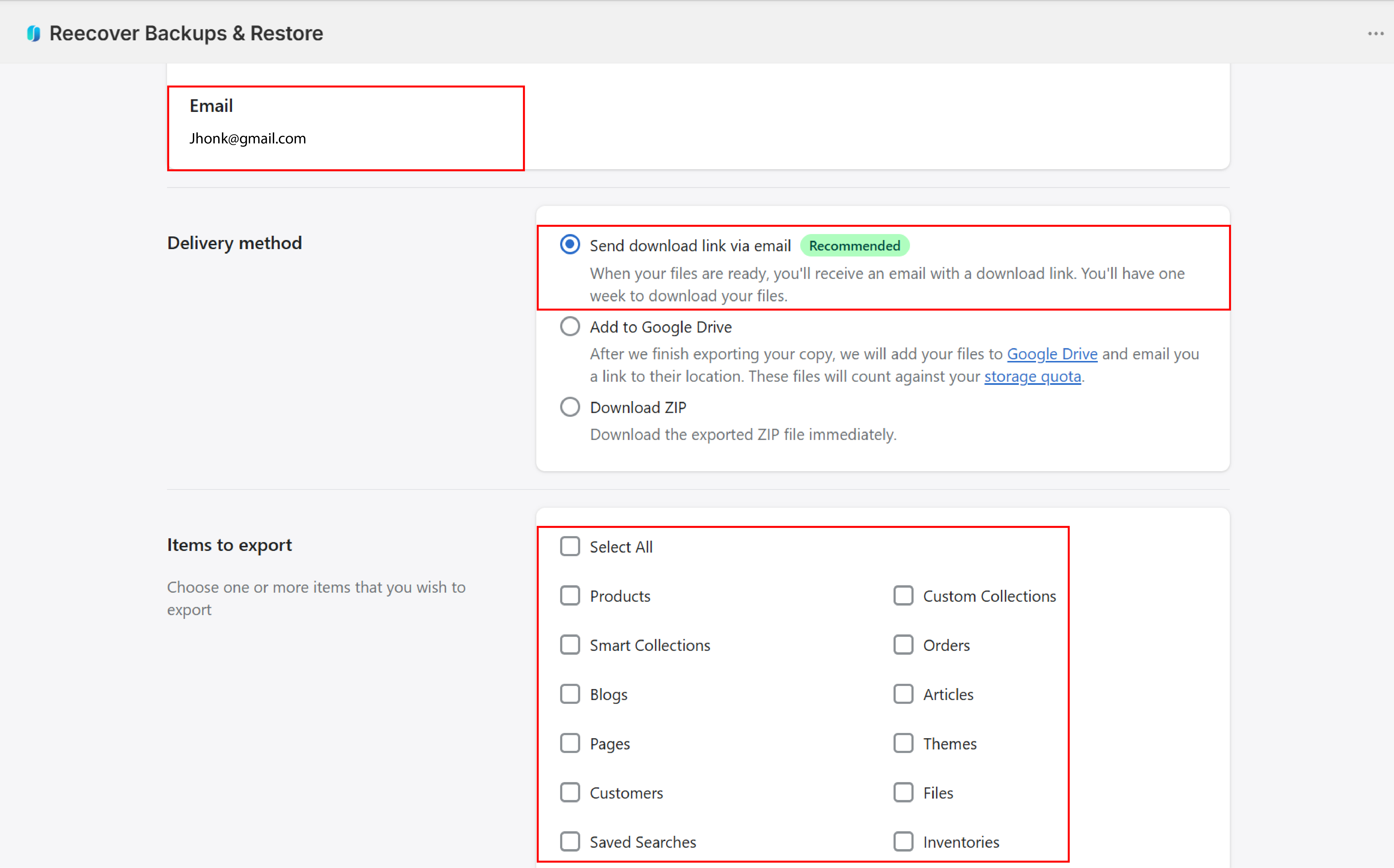
3. Choose what to export and start
Select the data types to include, choose Send download link via email, and click Start Export.
4. Download from email
Check your email for the download link and save the ZIP file to your computer or external storage. The link expires after seven days.
What the export file contains
Exports are delivered as ZIP archives in Recover's internal format containing the data types you selected. For large exports, the archive is split into multiple volumes of approximately 500 MB each. All volumes are delivered in the same email.
Troubleshooting
No email received
Check your spam or junk folder. Verify that the email address on your account is correct.
Download link expired
Start a new export if the seven-day window has passed.
Export stuck
Refresh the dashboard. If the issue continues, contact support at support@massyve.tech.
Need help?
If you have questions or need assistance, the support team is here to help. Reach out at support@massyve.tech or visit Contact support.