
Upload to Google Drive
Export your backed-up Shopify data and upload it directly to Google Drive for cloud storage.
Recover stores your data in secure backup storage — that's your primary backup. Uploading to Google Drive creates an additional cloud copy, giving you an extra layer of protection following the 3-2-1 backup rule (three copies of your data, on two different storage types, with one stored offsite). This is also useful if you plan to pause or close your store temporarily.
To transfer data between stores, use the clone feature instead — no need to download and re-import files.
Upload your backup to Google Drive
Prerequisites
- A Pro plan or higher
- At least one completed backup
- A Google account with available Drive storage
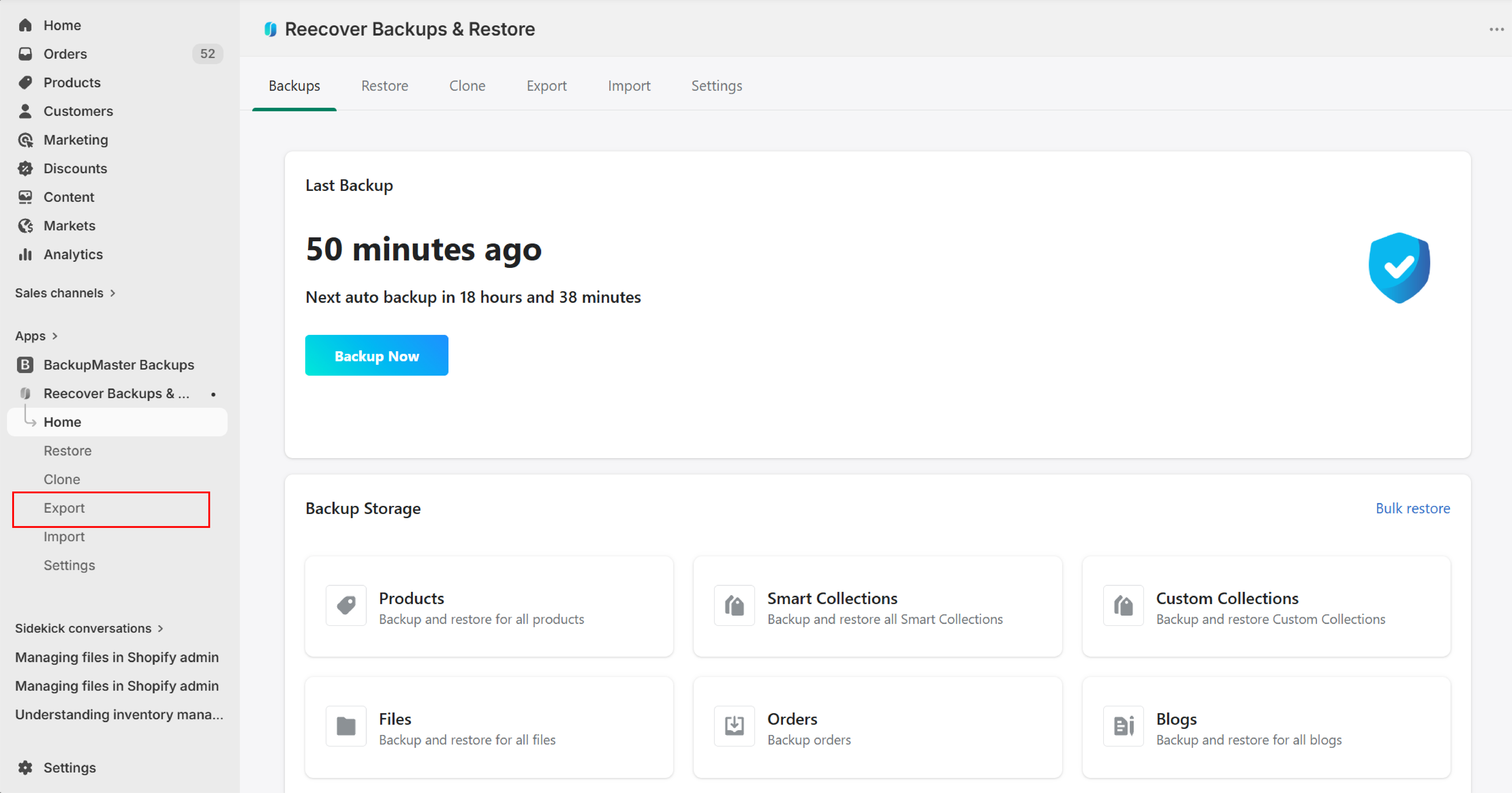
1. Open Recover and click Export
Open your Shopify admin, launch the Recover app, and click Export on the dashboard.
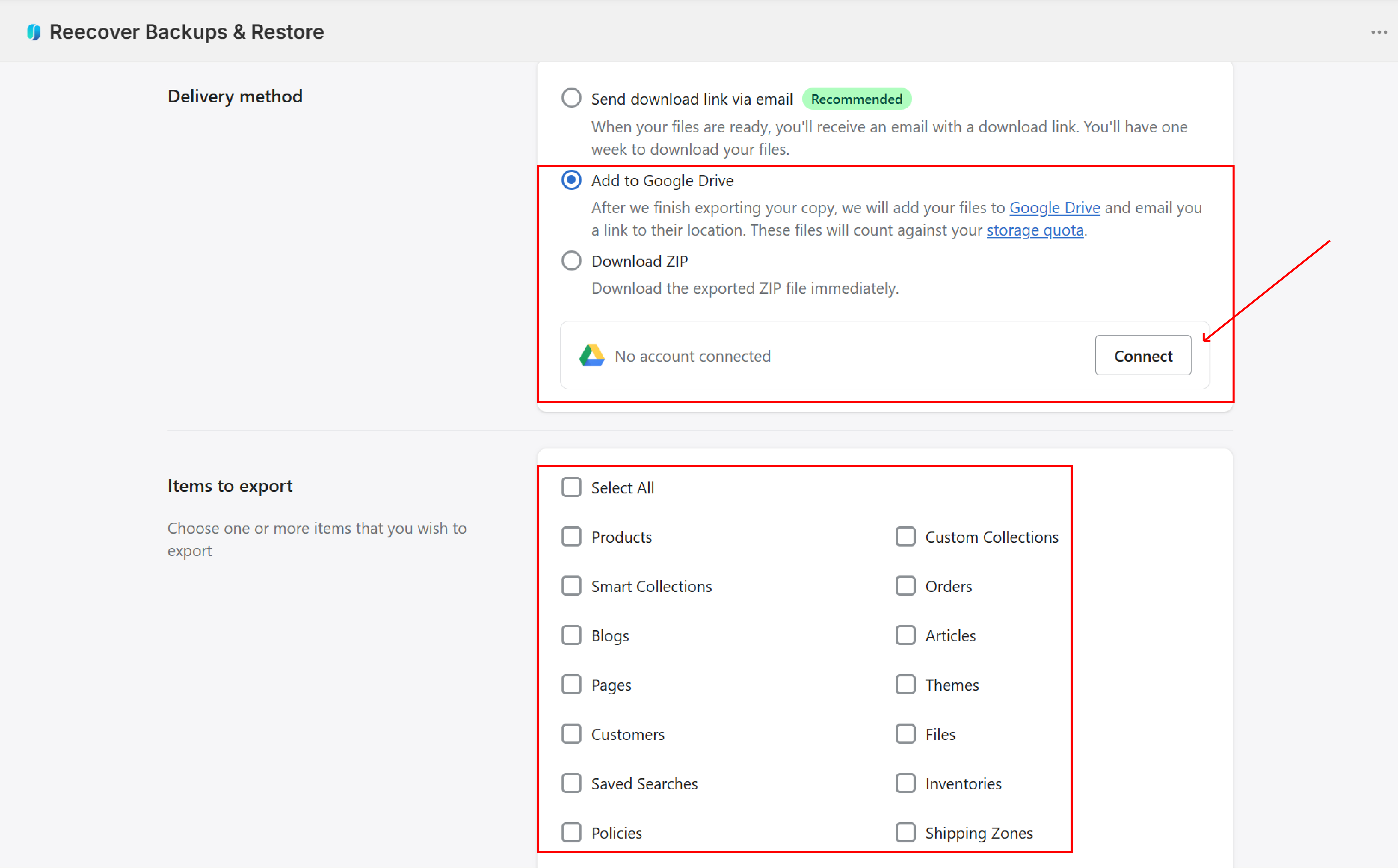
2. Choose what to export and select Google Drive
Select Export Now, choose the data types to include, and select Add to Google Drive as the delivery method.
3. Start and monitor the export
Click Start Export. Monitor the progress on your dashboard — you don't need to keep the app open. Once the upload finishes, verify that the backup file appears in your Google Drive.
You can download the file from Google Drive to local or external storage at any time.
Folder structure in Google Drive
Recover creates a folder in your Google Drive based on your store name. For example, if your store is storename.myshopify.com:
storename-backup/
├── 2026-03-01/
│   └── storename.myshopify.com-export-20260301120000.zip
├── 2026-03-15/
│   └── storename.myshopify.com-export-20260315120000.zip
└── ...
Each export gets its own date folder. Older exports are automatically deleted according to your configured retention policy.
Permissions and security
Recover requests permission to create and manage files in your Drive. It can only access the folder it creates — it cannot read or modify your other files. The connection uses Google's OAuth 2.0 authentication, and you can revoke access at any time from your Google account settings.
Troubleshooting
Google Drive connection fails
Make sure you select the permission checkbox during the authentication flow. Try a different browser if the issue continues.
Google Drive storage is full
Check your storage at drive.google.com/settings/storage. Free up space or upgrade your Google storage plan, then retry the export.
Export stuck
Refresh the dashboard. If the issue continues, contact support at support@massyve.tech.
Need help?
If you have questions or need assistance, the support team is here to help. Reach out at support@massyve.tech or visit Contact support.