
Restore a single item
Restore a single item from any backed-up category to a previous version with a side-by-side comparison before you confirm.
Recover lets you restore supported items from your backup storage to a previous version. A side-by-side comparison view shows exactly what will change before you confirm, so you can verify the data first.
Prerequisites
- At least one completed backup in your backup storage
- The item must belong to a restorable category
Restore a single item
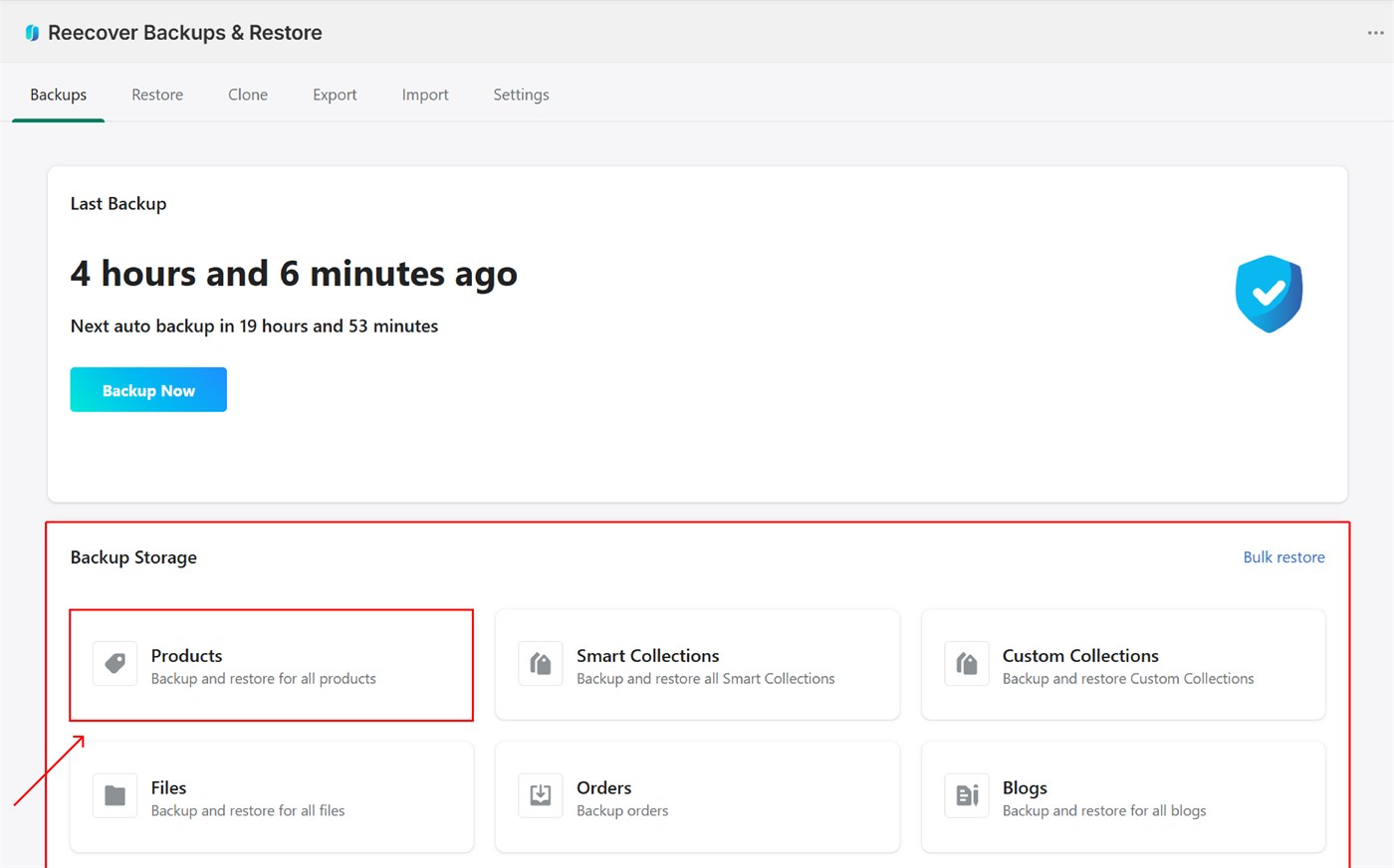
1. Open backup storage
Open Recover from your Shopify admin, select backup storage from the dashboard, and choose the data category that contains your item (for example, Products, Themes, or Customers).
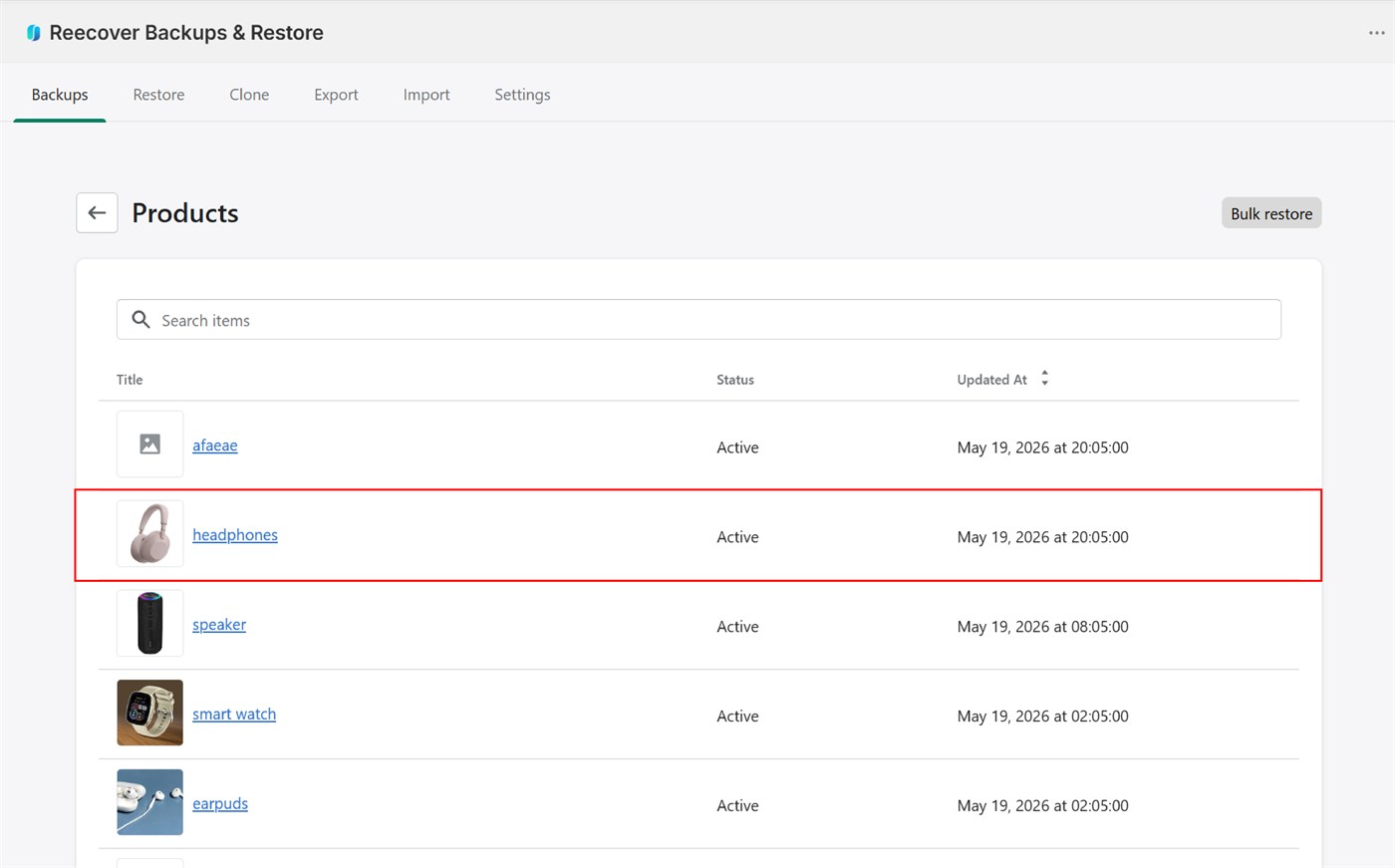
2. Locate the item
Search for the item by name, then click it to view its backed-up versions.
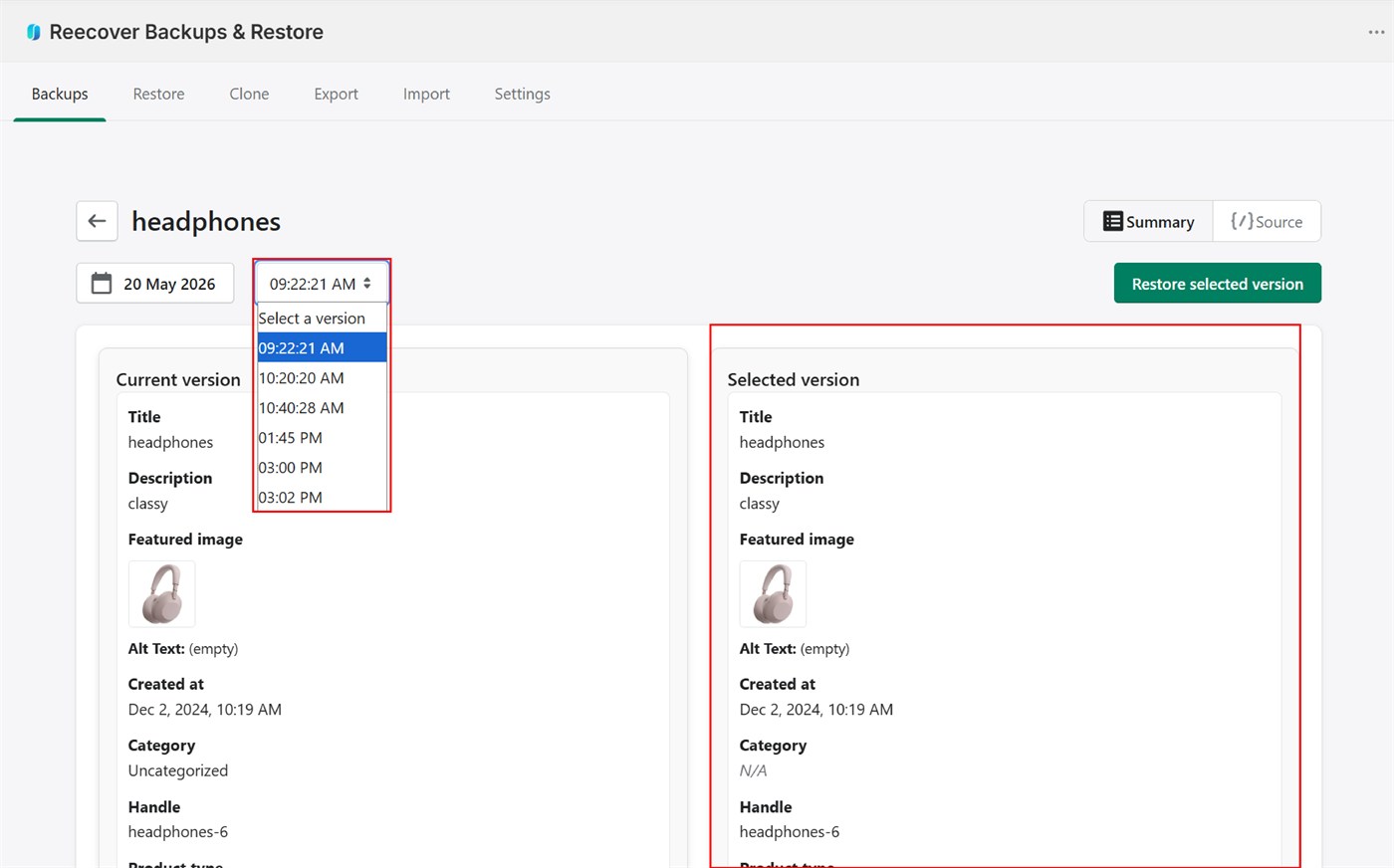
3. Review version differences
The comparison view displays your current live data on the left and the backed-up version on the right. Use the dropdown to switch between backup versions and find the one you need. Each version shows its capture date and time — pick the backup closest to (but before) the unwanted change.
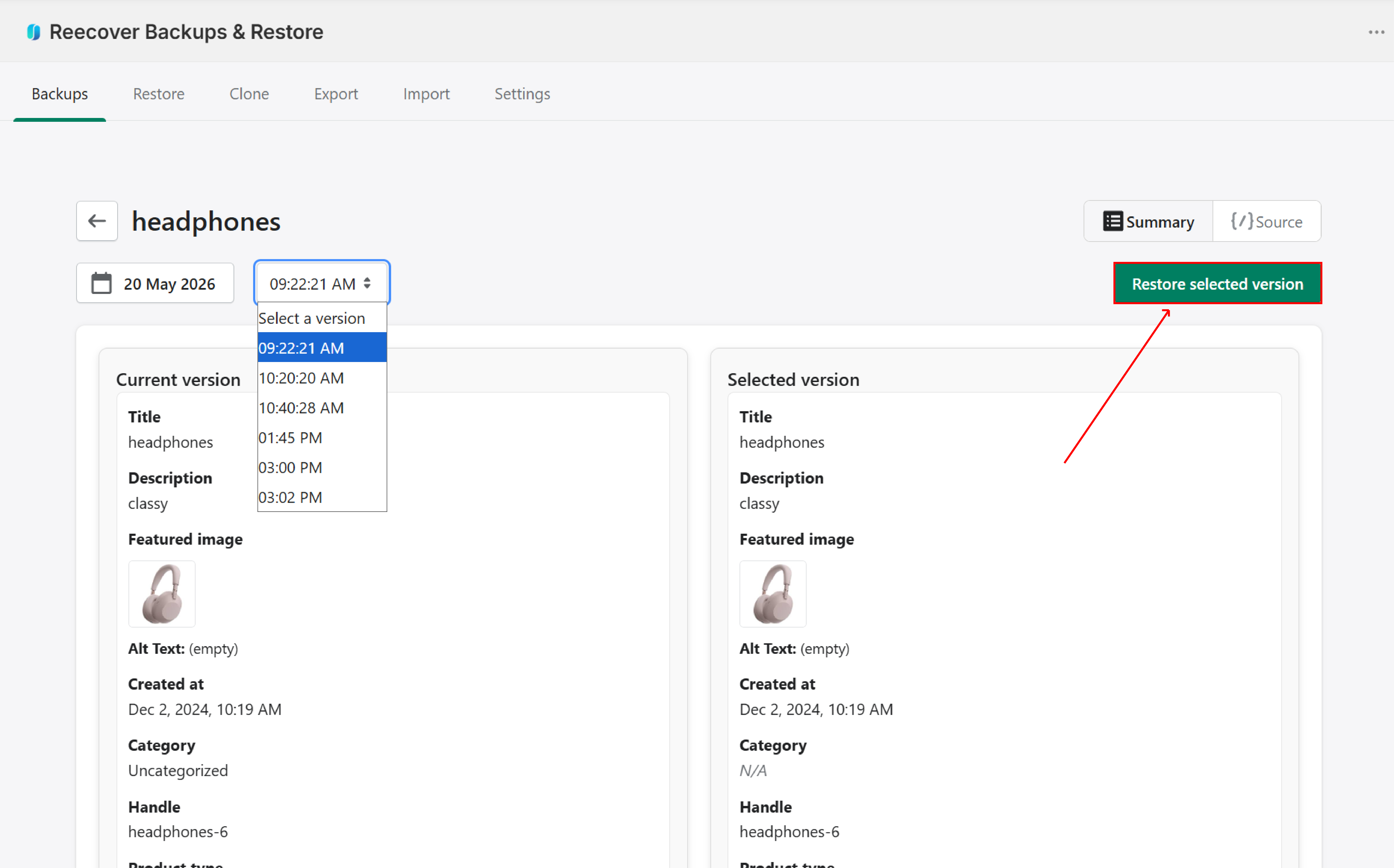
4. Start the restore
Select the version you want and click Restore to this version.
5. Confirm and verify
Confirm the restore in the dialog. Recover displays a success message once it completes. Individual restores typically finish in seconds.
How restoring affects your live data
Recover uses a matching process for each item:
- Match by ID — looks for the item using its unique Shopify ID. If found, it updates the existing item.
- Match by handle — if no ID match exists (for example, the item was deleted and recreated), matches by the handle (URL slug) and updates that item.
- Create new — if neither ID nor handle matches, creates a new item from the backup.
When Recover creates a new item (step 3), Shopify assigns it a fresh numeric ID. This is a Shopify platform constraint — no app can set the ID of a new object through the API. If your external integrations, hardcoded links, or third-party apps reference the old Shopify ID, you'll need to update them after the restore. All content fields are preserved: handles, titles, descriptions, prices, images, metafields, tags, and everything else Recover backs up.
If the item is matched by ID or handle (steps 1 or 2), its existing Shopify ID stays the same. New IDs only apply when Recover creates a brand-new item because no match was found.
Troubleshooting
Restore button is greyed out
A bulk operation (restore, export, or backup) is likely running. Wait for it to finish, then try again.
Restore fails with an error
Retry the restore. If the problem continues, contact support at support@massyve.tech.
Restored product is missing images or variants
Verify the data was backed up by checking the item in backup storage. Contact support at support@massyve.tech if you need help.
Need help?
If you have questions or need assistance, the support team is here to help. Reach out at support@massyve.tech or visit Contact support.