
Restore items in bulk
Restore entire data categories at once instead of recovering items one by one.
Bulk restore lets you restore entire data categories at once instead of recovering items one by one. This is the fastest way to roll back large amounts of store data to a previous state.
Prerequisites
- At least one completed backup in your backup storage
- The categories you want to restore must be supported for bulk restore
Run a bulk restore
1. Open the bulk restore tool
Open Recover from your Shopify admin, go to backup storage, and click Bulk Restore.
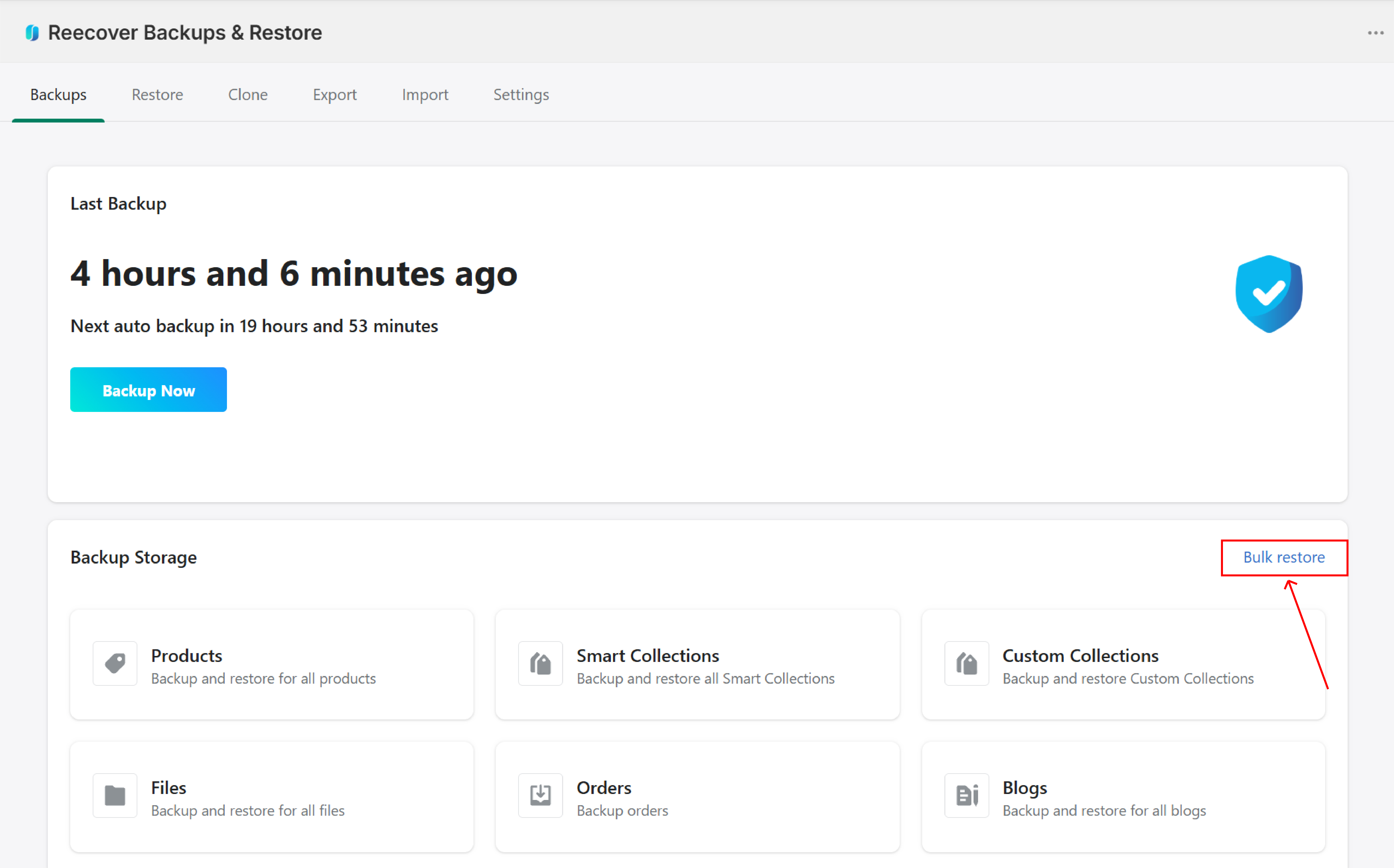
2. Select a restore point
Review the available backup versions — each one shows its capture date and time. Pick a restore point that falls before the issue occurred, choosing the version closest to the incident to minimize lost changes.
If you're not sure when the problem started, check individual items in backup storage first. The comparison view lets you browse versions to identify when the unwanted change happened.
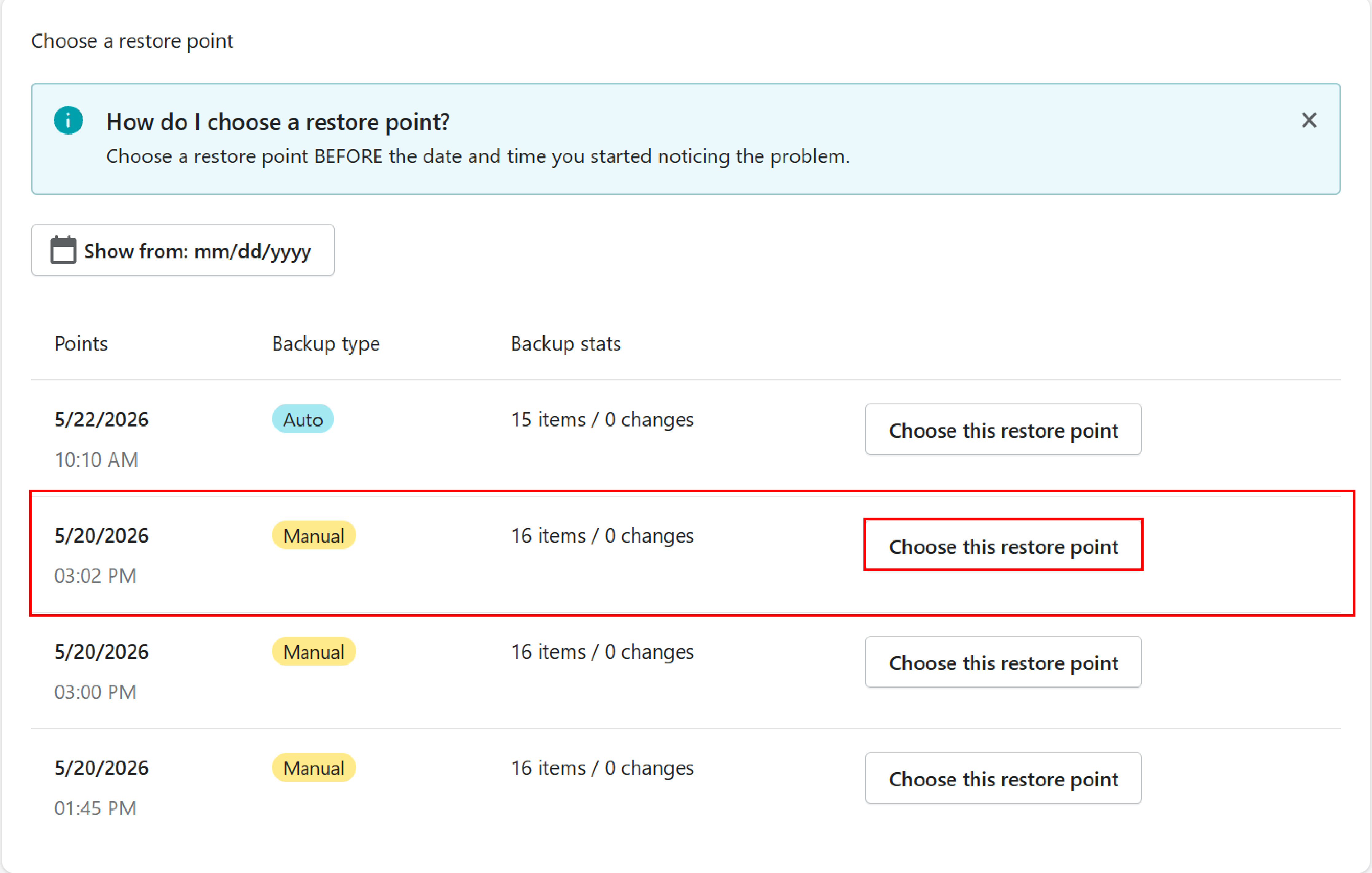
3. Choose categories
Select the item categories you want to restore. You can pick multiple categories at once.
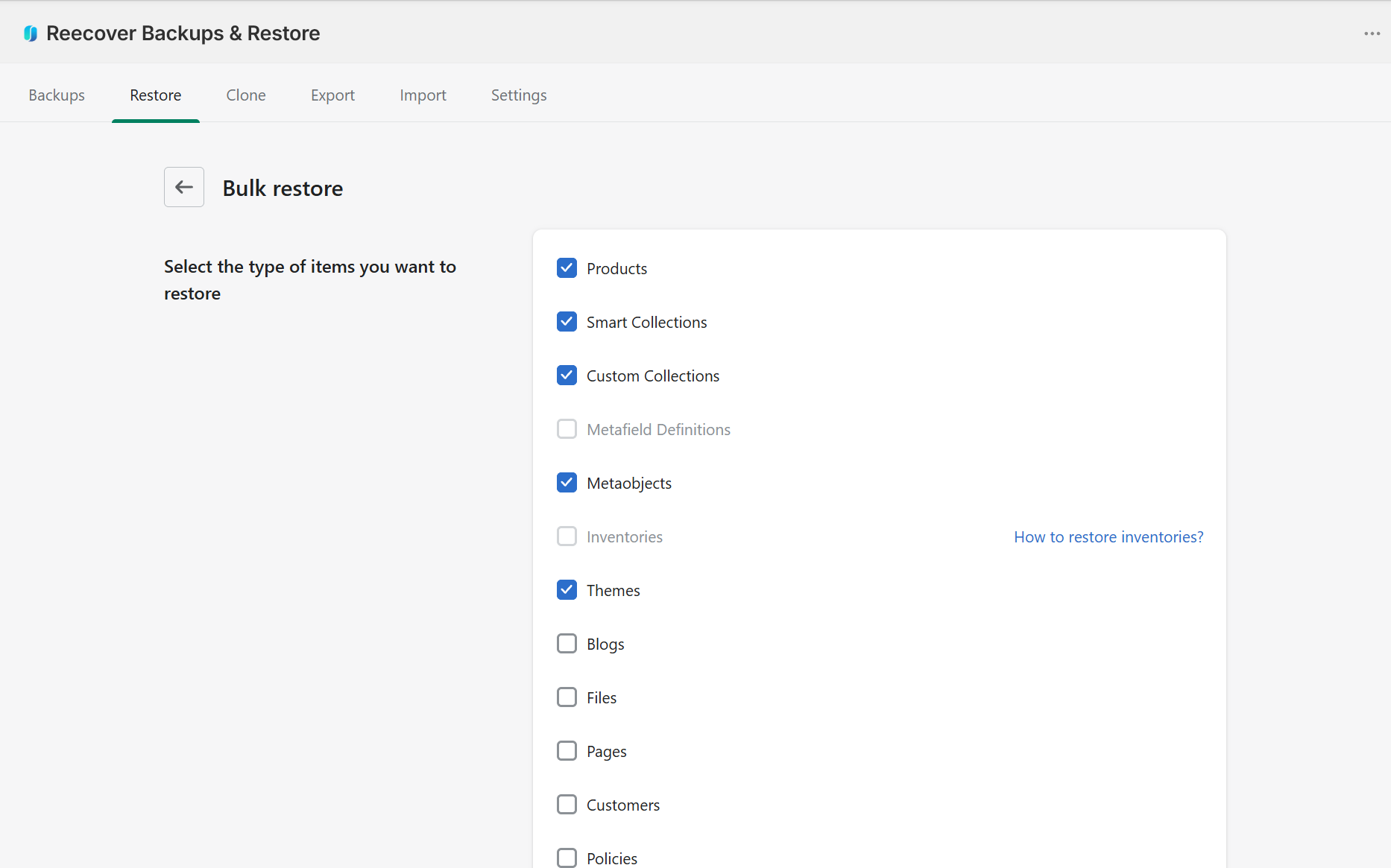
How bulk restore affects your live data
Bulk restore updates your store data to match the backed-up versions for every item in the selected categories. Recover matches each item by ID first, then by handle.
- If a matching item is found, it's updated to the backed-up version. Changes made after the backup point are lost.
- If no match is found (for example, the item was deleted), a new item is created from the backup.
- Items that exist in your store but weren't in the backup are left unchanged. Bulk restore doesn't delete anything.
Troubleshooting
Some items weren't restored
Check the restore notification email for details on items that failed. Retry those items individually using single-item restore.
Progress seems stuck
Shopify API rate limits can slow processing, especially for products with many images. The restore is still running — wait for the completion email. Contact support at support@massyve.tech if no progress shows for more than 2 hours.
Wrong version restored
Run another bulk restore with the correct restore point. The newer restore overwrites the previous one.
Bulk restore button is greyed out
A bulk operation (restore, export, or backup) is likely running. Wait for it to finish, then try again.
Need help?
If you have questions or need assistance, the support team is here to help. Reach out at support@massyve.tech or visit Contact support.